Domain will not verify
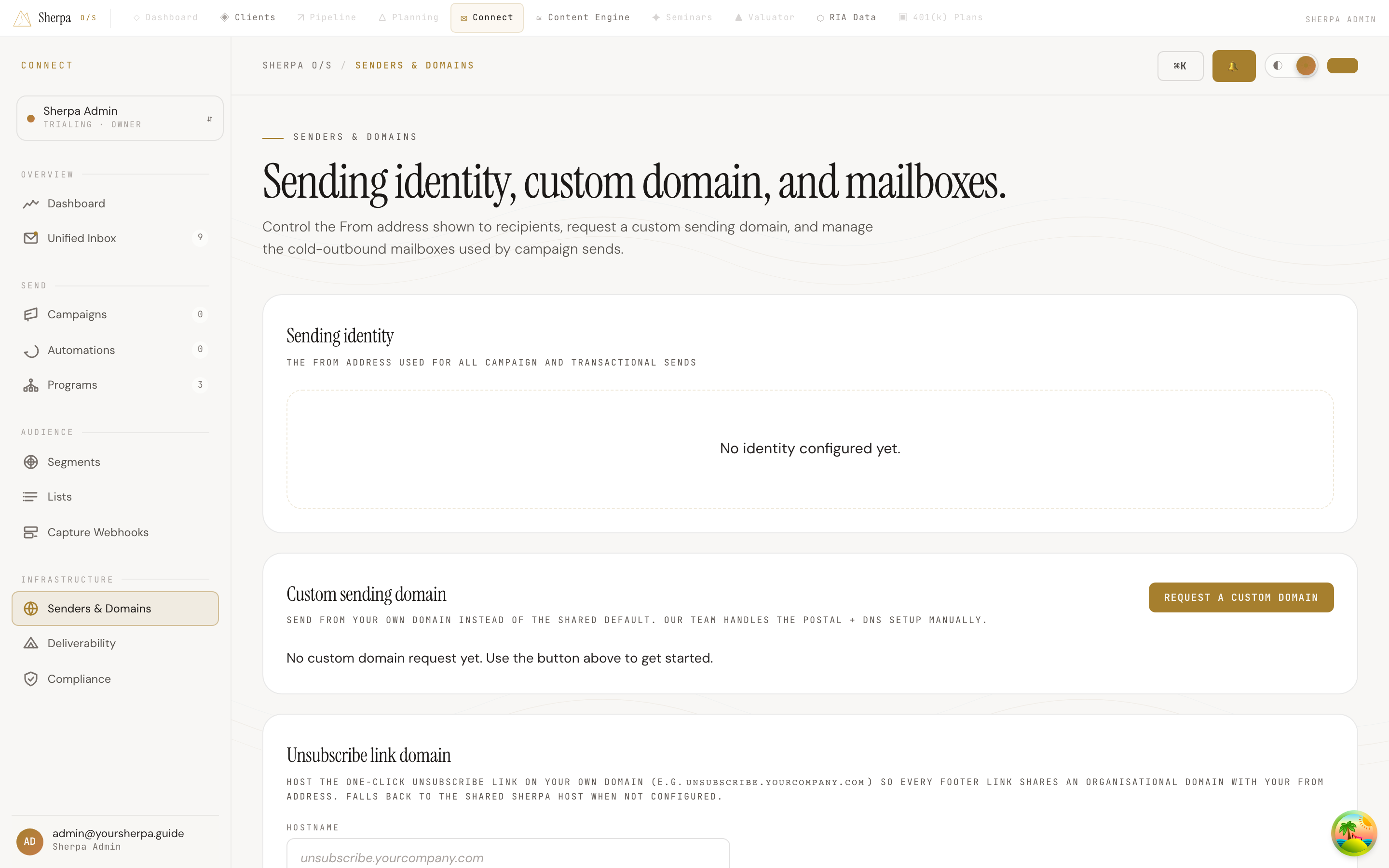
The Senders & Domains screen is your control center for everything related to outbound email authentication — your From address, custom sending domain, and the unsubscribe link domain. If your custom domain request has stalled or your unsubscribe host is stuck in a failed state, this page is where you diagnose and resolve it.
Getting there
Section titled “Getting there”Open Connect, then select Infrastructure in the left navigation and choose Senders & Domains.
What you can do
Section titled “What you can do”Custom sending domain stuck in “Pending review” or “In progress”
Section titled “Custom sending domain stuck in “Pending review” or “In progress””When you request a custom domain, the Sherpa team manually configures it in the sending infrastructure and then provides you with DNS records to publish. The Status column on the Custom sending domain card shows where things stand:
- Pending review — your request reached the team and is in the queue.
- In progress — the team has started setup and has published DNS records for you to add.
- Active — setup is complete and the domain is live.
- Rejected — the request was declined; a reason is shown inline.
If the status shows In progress, a DNS records table appears beneath the status. Each row lists a record Type, Host / name, and Value. Use the Copy buttons next to each field to avoid typos, then add the records at your DNS provider.
If your request was Rejected, the reason is displayed in red beneath the status. Select Submit a new request to open the request form again and try a different subdomain.
Unsubscribe link domain failing verification
Section titled “Unsubscribe link domain failing verification”The Unsubscribe link domain card lets you host one-click unsubscribe links on a subdomain you control (for example, unsubscribe.yourcompany.com). Verification requires two things to succeed:
- A CNAME record pointing to the Sherpa edge target, published at your DNS provider.
- A valid TLS certificate active on the hostname — this may take a few minutes after the CNAME first resolves.
If the status shows Verification failed, check the Last error line beneath the status chip for a specific error code. Then:
- Confirm the CNAME record in the DNS records table is published correctly at your provider. Use the Copy buttons to grab the exact Host and Value without risk of typos.
- Verify that a TLS certificate is active for the hostname. If you are using a CDN or reverse proxy in front of the subdomain, make sure SSL termination is configured there.
- Select Verify to run the check again once both conditions are met.
If verification continues to fail after the CNAME resolves and TLS is active, contact Sherpa support with the error code shown on the card.