Composer
Composer is the full-screen editor where you write and refine a content piece, then send it for review or ship it across multiple channels in one step. It is designed for advisors who want to produce polished, compliant content without switching between tools.
Getting there
Section titled “Getting there”In the app, go to Content Engine → Create → Composer. You can also reach it by opening any draft from the Library — select a piece and it opens directly in Composer.
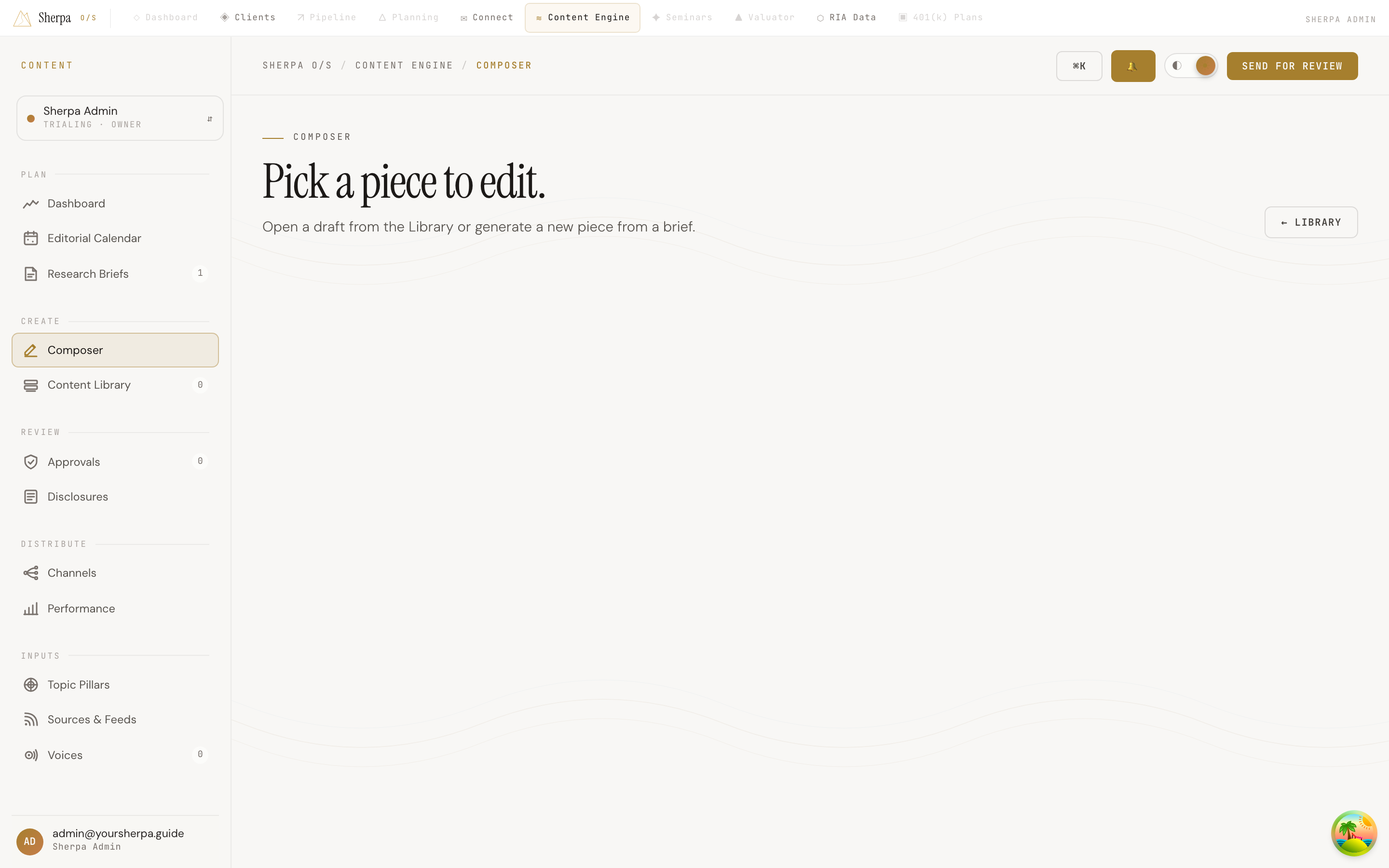
If you navigate to Composer without a piece selected, the screen prompts you to open a draft from the Library or generate a new piece from a brief.
What you can do
Section titled “What you can do”Write and format your piece
Section titled “Write and format your piece”The editor surface has a title field at the top and a rich-text body below it. Use the formatting toolbar to apply headings (H1, H2), paragraphs, bold, and italic styles. The toolbar also includes quick-insert buttons for a blockquote, a code block, a Source citation, a Disclosure, and a Chart placeholder — useful for keeping compliance references close to the relevant claim.
Composer tracks a live word count in the status bar at the top of the page, alongside the piece’s current status and channel.
Autosave
Section titled “Autosave”You do not need to manually save. Composer autosaves one second after you stop typing, and immediately when you click away from the title or body. The status bar shows Autosaved _n_s ago, Saving…, Unsaved changes, or Save failed — retry so you always know where your work stands.
Use the AI co-pilot
Section titled “Use the AI co-pilot”The right-hand rail contains Co-pilot · Echo, which surfaces quick actions for your current draft:
- Add disclosure — inserts the appropriate regulatory language
- Suggest source — proposes a citation for an unsourced claim
- Tighten intro — rewrites the opening to be more concise
- LI variant — creates a LinkedIn-ready version of the piece
If you need a full redraft, click Regenerate in the page header. While generation is in progress the editor is locked and a status indicator shows that the AI is writing; it unlocks automatically when the draft lands.
Select your distribution channels
Section titled “Select your distribution channels”The Ship to section in the right rail lists up to four output channels — WordPress, Connect (broadcast email), MailChimp, and LinkedIn — each showing the destination, audience size or format, and the content format for that channel. Click any row to toggle a channel on or off before you send.
Review the pre-flight checklist
Section titled “Review the pre-flight checklist”Below the channel list, a Pre-flight checklist shows automated compliance and deliverability checks — for example SPF/DKIM alignment, alt text on images, the SEC Marketing Rule footer, and SEO score. Items marked with a warning (!) require attention before the piece is ready for review.
Send for review
Section titled “Send for review”When your draft is ready, click Send for review in the page header. This flushes any pending autosave and submits the piece to your compliance workflow.