Deliverability
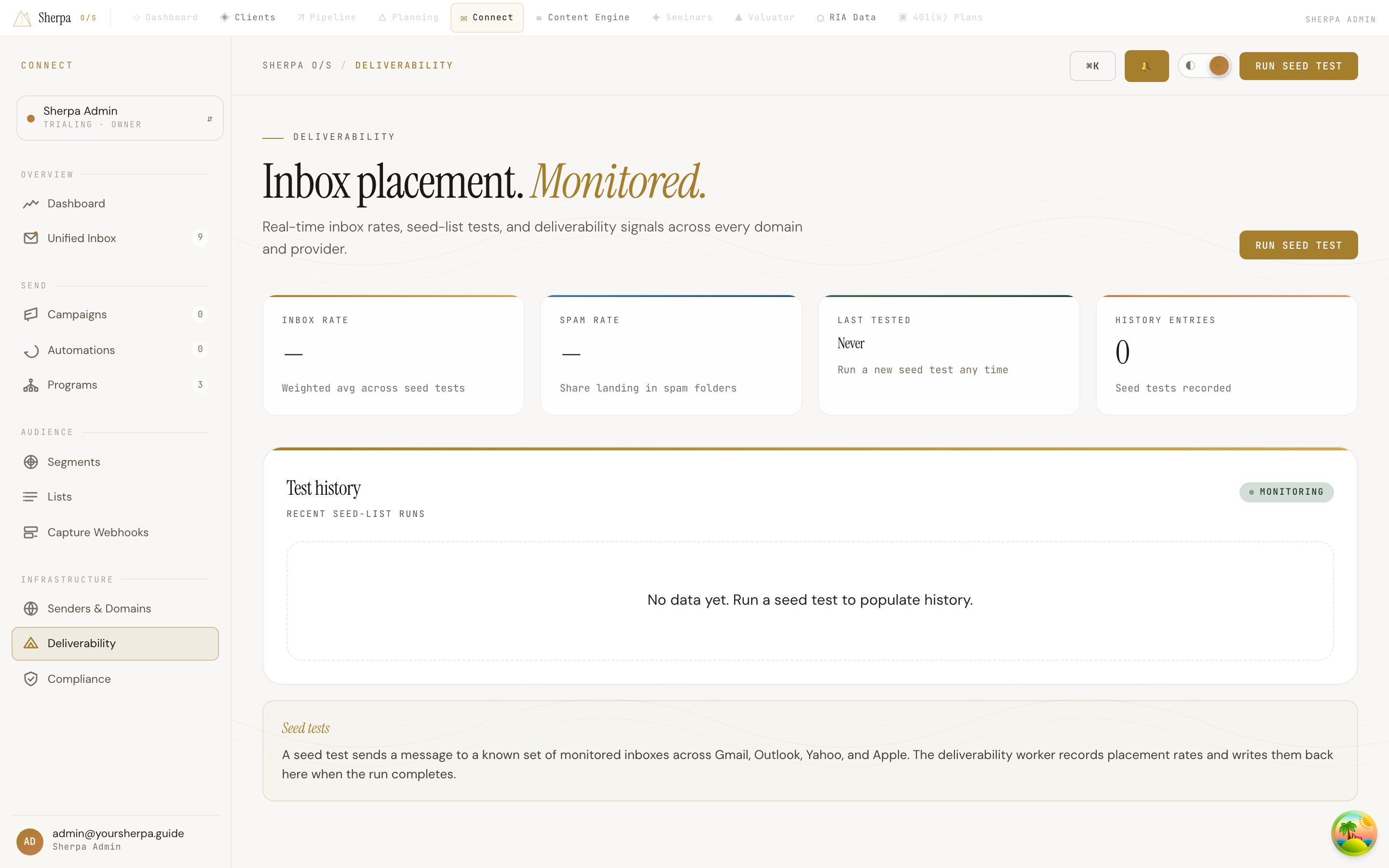
The Deliverability screen gives you a real-time view of how your emails are landing — tracking inbox placement rates, spam folder rates, and the history of every seed test you have run. Use it to catch deliverability problems early before they affect your campaigns.
Getting there
Section titled “Getting there”In Connect, open the Infrastructure section in the left navigation and select Deliverability.
What you can do
Section titled “What you can do”Read your summary stats
Section titled “Read your summary stats”At the top of the screen, four stat cards give you an at-a-glance health check:
- Inbox rate — the weighted average percentage of seed messages that landed in the inbox across all tests.
- Spam rate — the share of seed messages that were routed to spam folders.
- Last tested — the date and time of your most recent seed test, so you always know how fresh your data is.
- History entries — the total number of seed tests on record.
Review test history
Section titled “Review test history”Below the stat cards, the Test history panel lists every seed test that has been recorded. Each row shows the run time, the sender address used, the inbox rate, the spam rate, and the sample size for that run. If no tests have been run yet, the panel shows an empty state prompting you to run your first test.
Run a seed test
Section titled “Run a seed test”A seed test sends a message through your infrastructure to a known set of monitored inboxes across Gmail, Outlook, Yahoo, and Apple Mail. When the run completes, Sherpa records the placement results and adds a new row to your history.
To run a test:
- Click Run seed test in the top-right corner of the screen.
- Select a verified sender identity from the dropdown. Unverified identities appear with a (pending) label and cannot be used until verification is complete.
- Click Run seed test to queue the job. The form closes automatically when the test has been queued successfully.
If you have not added any sender identities yet, the form will prompt you to do so before continuing.