Approvals
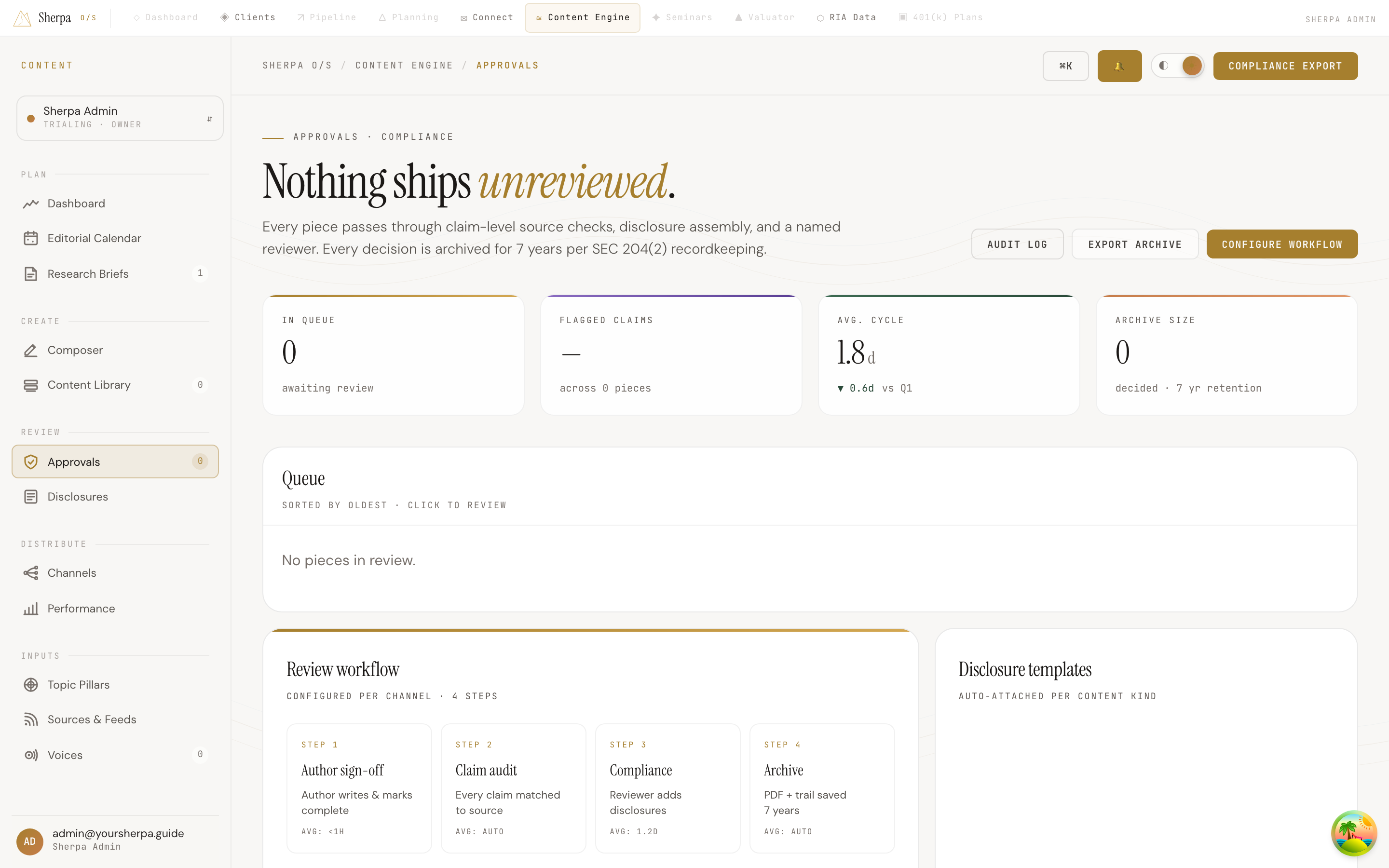
The Approvals screen is your compliance control center inside the Content Engine. It gives you and your team a single place to track every piece of content moving through review — so nothing reaches clients without a named reviewer, claim-level source checks, and the right disclosures attached.
Getting there
Section titled “Getting there”In the app, navigate to Content Engine → Review → Approvals.
What you can do
Section titled “What you can do”See what is waiting for review
Section titled “See what is waiting for review”The Queue panel lists every content piece that is currently in the review workflow, sorted oldest-first. Each row shows the piece’s title, channel, and content kind. A four-step progress indicator shows exactly which step the piece is on. The assigned reviewer’s name and the current status (“Waiting · step 3”) appear on the right. Click Review on any row to open that piece and take action.
If nothing is in the queue, the panel displays “No pieces in review.”
Understand the four-step workflow
Section titled “Understand the four-step workflow”Every piece of content moves through the same four steps:
- Author sign-off — The author writes the piece and marks it complete. This step typically closes in under an hour.
- Claim audit — Every factual claim in the piece is automatically matched to a source. This step runs without manual intervention.
- Compliance — A named compliance reviewer reads the piece, confirms disclosures are correct, and approves or requests changes. This step averages about 1.2 days.
- Archive — Once approved, a PDF and full audit trail are saved automatically and retained for 7 years to meet SEC 204(2) recordkeeping requirements.
Check your disclosure templates
Section titled “Check your disclosure templates”The Disclosure templates panel lists the standard disclosures that Sherpa attaches automatically based on content kind. Each template shows its title, the content types it applies to, and how many times it has been used. Disclosures are added during step 3 (Compliance) and do not require manual copy-pasting.
Access audit and archive tools
Section titled “Access audit and archive tools”Three buttons in the top-right corner give you fast access to compliance tooling:
- Audit log — Opens a chronological record of every approval decision.
- Export archive — Downloads the archive of decided pieces.
- Configure workflow — Adjusts the review workflow settings per channel.
The summary stats at the top of the page show you the current queue depth, average review cycle time, and total archive size at a glance.