Plans & modules
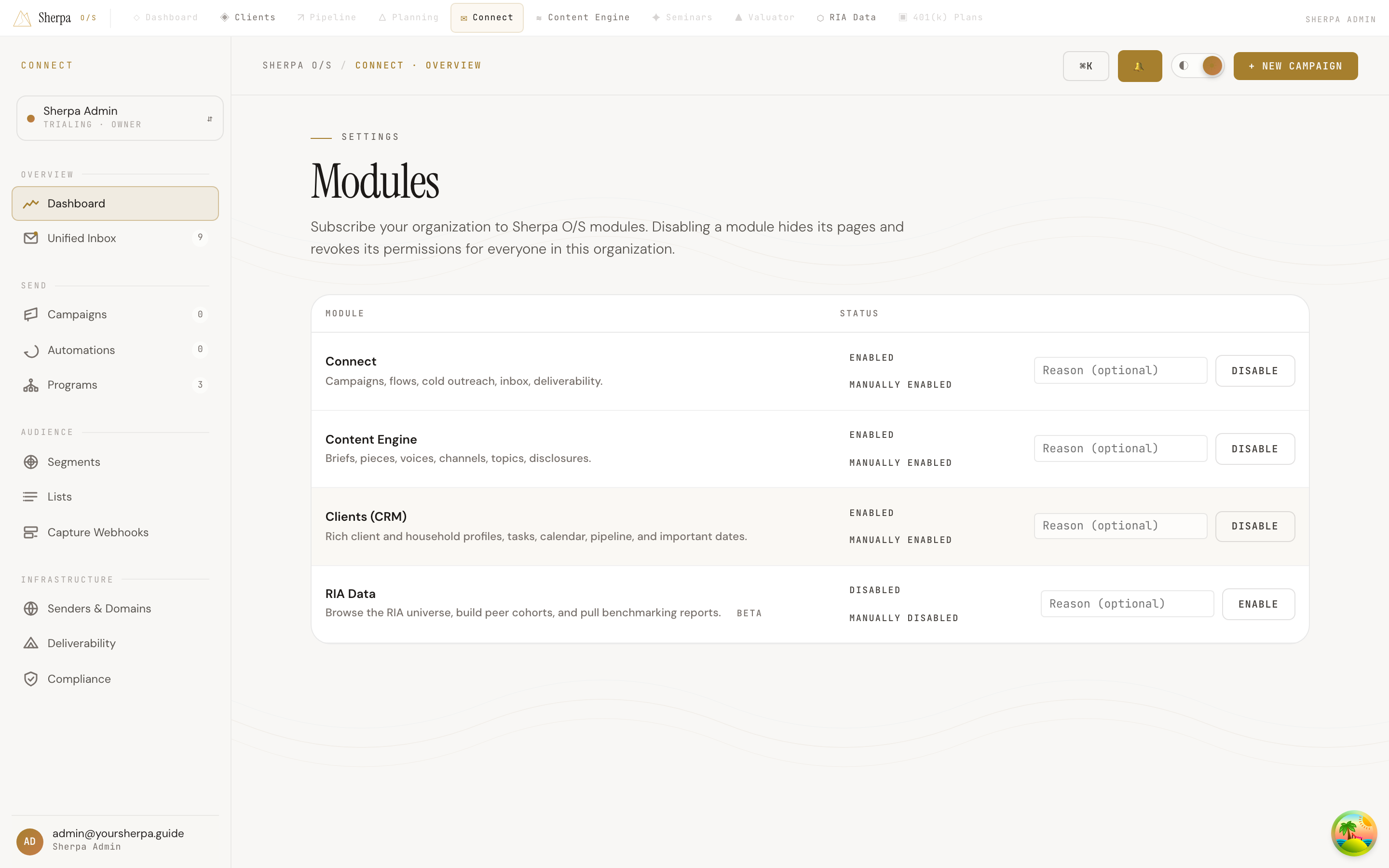
The Modules screen is your organization’s central control panel for Sherpa-OS products. Owners and anyone with the org:modules:manage permission can see the full module catalog and toggle access for every member of the organization.
Getting there
Section titled “Getting there”In the left-hand navigation, go to Settings, then select Modules.
What you can do
Section titled “What you can do”View and manage modules
Section titled “View and manage modules”The screen shows a table with three columns:
- Module — the module name and a short description. Modules in beta carry a beta badge.
- Status — two chips stacked together. The top chip shows whether the module is currently Enabled or Disabled. The bottom chip shows the source: Included in plan (controlled by your Stripe subscription) or Manually enabled / Manually disabled (flipped by hand inside this screen).
- An action column with an optional Reason text field and an Enable or Disable button.
Enable a module
Section titled “Enable a module”- Find the module in the table.
- Optionally type a short note in the Reason field — useful for audit trails.
- Click Enable. The status chip updates immediately and the module’s pages become available to everyone in your organization.
Disable a module
Section titled “Disable a module”- Find the module in the table.
- Optionally enter a reason in the Reason field.
- Click Disable. A confirmation prompt warns you that all members will lose access to that module’s pages and permissions until it is re-enabled. Confirm to proceed.
Plan-included modules
Section titled “Plan-included modules”If a module shows Included in plan, the Disable button is grayed out and cannot be clicked. That module is tied to your active Stripe subscription, and disabling it here would have no lasting effect — your plan would re-enable it on the next billing cycle anyway. To remove a plan-included module, change your subscription in Settings → Billing.
Permission required
Section titled “Permission required”Only users who hold the org:modules:manage permission (typically organization Owners) can make changes here. If you see a message saying you need that permission, contact an Owner on your account.