Benchmarking
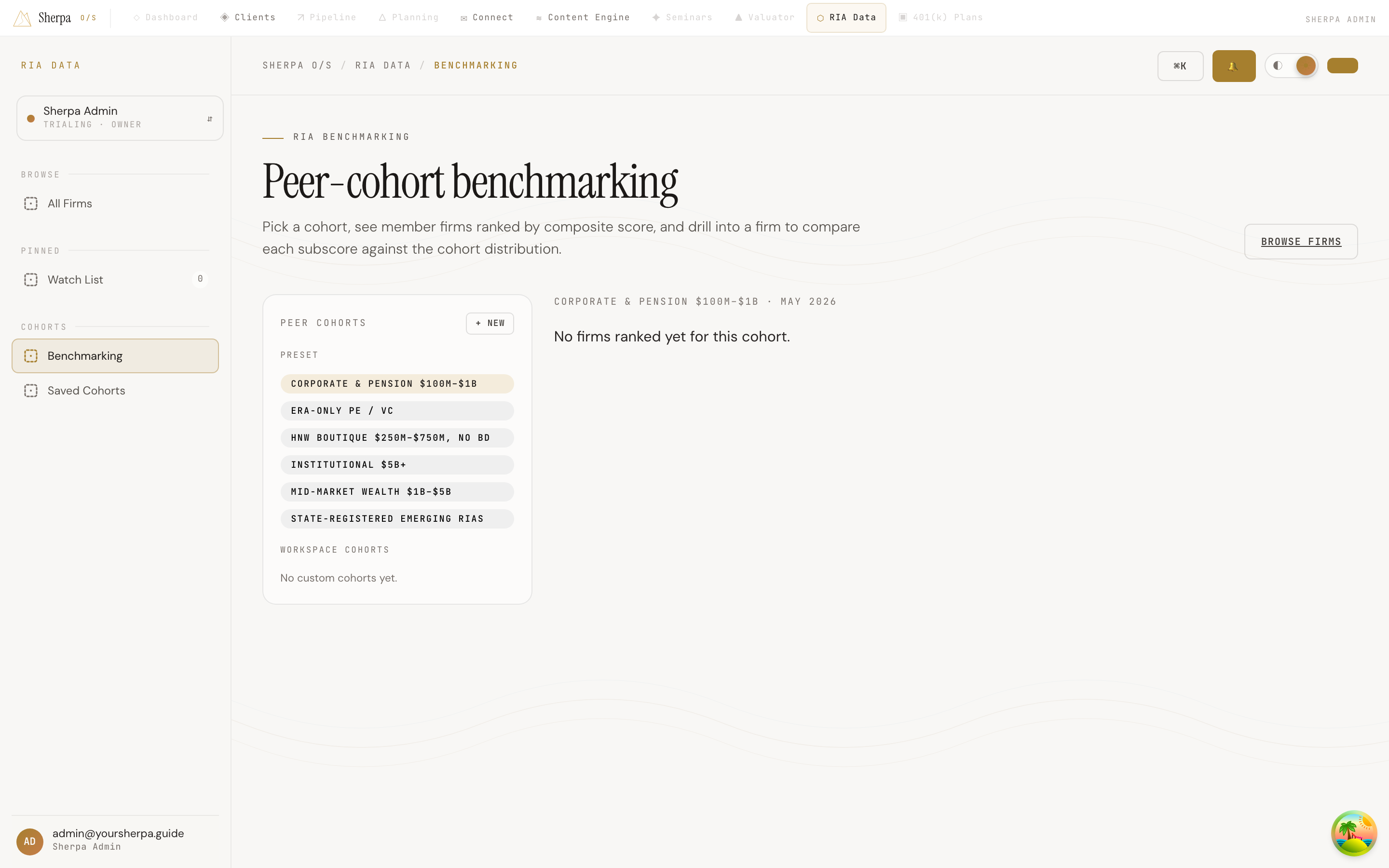
The Benchmarking screen lets you rank any group of RIA firms against one another and see exactly where a specific firm sits across seven scored dimensions — all within a single snapshot so every comparison draws from the same data.
Getting there
Section titled “Getting there”In the app, navigate to RIA Data → Cohorts → Benchmarking.
What you can do
Section titled “What you can do”Pick a cohort
Section titled “Pick a cohort”The left rail lists all available peer cohorts in two groups:
- Preset — built-in cohorts maintained by Sherpa (for example, cohorts grouped by AUM tier or registration type).
- Workspace cohorts — custom cohorts your team has created. If none exist yet, the rail shows “No custom cohorts yet.”
Click any cohort chip to load its member firms. The header above the table shows the cohort name and the snapshot date the data is drawn from.
Read the rankings table
Section titled “Read the rankings table”Once a cohort is selected, the members table ranks every firm in that cohort by its composite score from highest to lowest. Each row shows:
| Column | What it means |
|---|---|
| Firm | Legal name and CRD number |
| State | Primary office state |
| Reg. AUM | Regulatory assets under management |
| Composite | Overall score (highlighted in gold) |
| Pctile | Where the firm ranks within the cohort (e.g., P75) |
| Growth, Fee transparency, Conflicts, Team, Compliance, Client mix, AUM stability | Individual subscore columns |
Drill into a firm’s scorecard
Section titled “Drill into a firm’s scorecard”Click any firm name in the table to open its scorecard below. The scorecard shows each of the seven subscores alongside a percentile distribution bar. The bar spans P10 to P90 for that metric in the selected cohort, with tick marks at P25, P50, and P75. A marker shows where the selected firm lands. If a distribution has not yet been computed for a metric, the bar displays “No distribution.”
From the scorecard you can also select Open firm → to jump to that firm’s full detail page.
Create a custom cohort
Section titled “Create a custom cohort”If you have write access to RIA Data, a + New button appears at the top of the cohort rail.
- Click + New to open the “New peer cohort” dialog.
- Enter a Label (required) and an optional Slug and Description.
- Choose one or more Registration types: SEC, State, or ERA.
- Select an AUM tier (from “Any AUM” up to “$5B+”).
- Optionally enter a comma-separated list of two-letter States (e.g.,
CA, NY, TX). - Click Create cohort. Sherpa will run a scoring pass and then automatically select the new cohort.