Clients dashboard
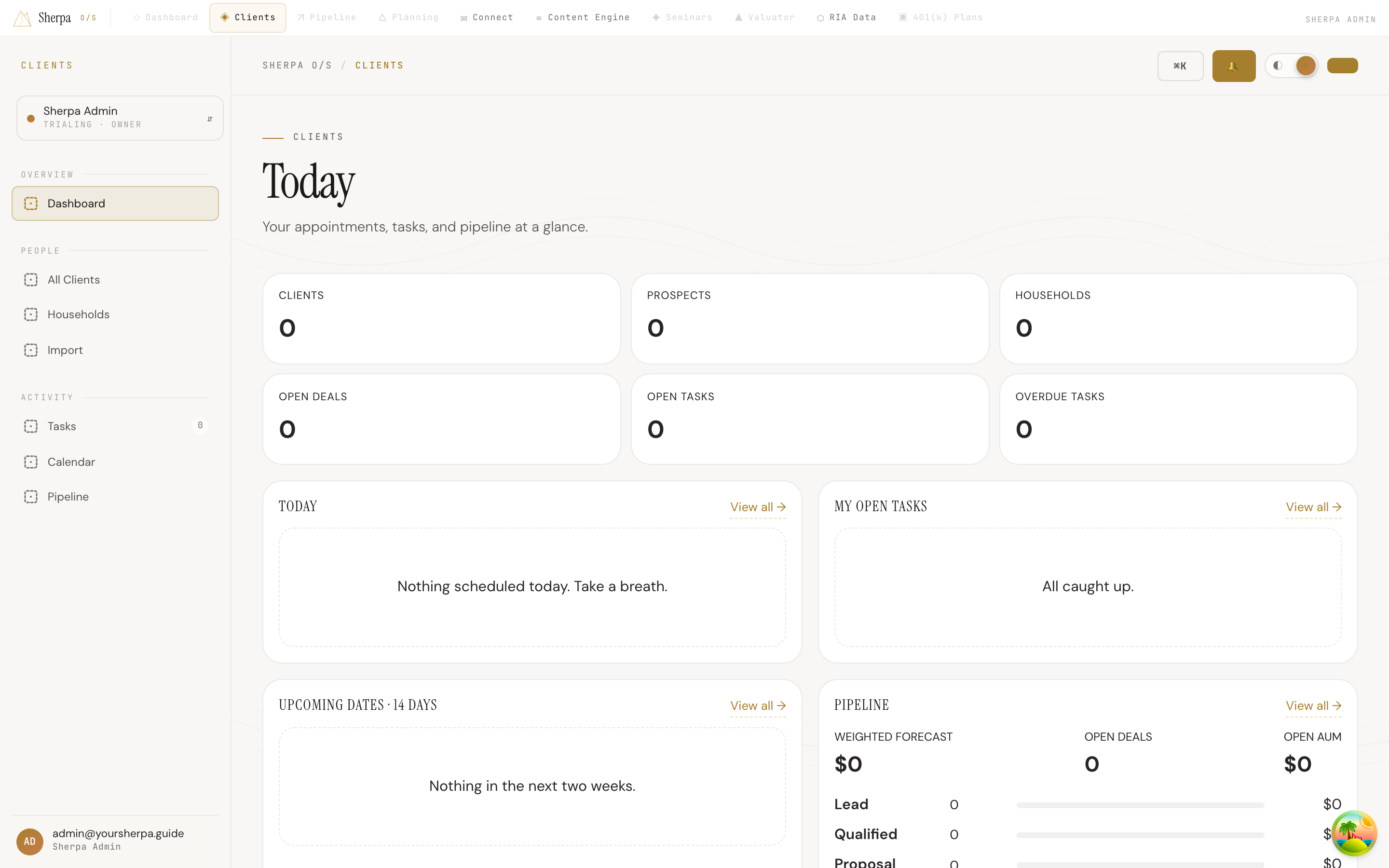
The Clients dashboard — labeled Today in the app — brings your appointments, tasks, pipeline, and recent activity together in one place so you can orient quickly at the start of each day.
Getting there
Section titled “Getting there”In the left navigation, select Clients, then choose Overview. The dashboard is the default landing screen.
What you can do
Section titled “What you can do”See today at a glance
Section titled “See today at a glance”The Today widget lists every appointment and task due today, sorted by time. Each appointment shows its start time, title, first invitee or household name, and current status. If the appointment is not yet marked complete, a Done button lets you mark it from the dashboard without leaving this screen. Tasks show their due time (or an Overdue badge if they are past due) along with the associated contact or household, and a Complete button to close them out inline.
Check your open tasks
Section titled “Check your open tasks”The My open tasks widget shows your personal task queue. Each task displays its due date, title, linked contact or household, and a Complete button. If you have more tasks than the list shows, a count at the bottom tells you how many additional items are waiting — select View all to open the full task list.
Spot upcoming important dates
Section titled “Spot upcoming important dates”Upcoming dates · 14 days surfaces birthdays, anniversaries, and other saved dates for the next two weeks. Each row shows how far away the date is (Today, Tomorrow, or “in X days”), the date label, and a link to the relevant contact or household record. Up to eight dates appear; a note below the list indicates if there are more.
Review your pipeline
Section titled “Review your pipeline”The Pipeline widget gives you a stage-by-stage view of open deals. At the top you see three headline numbers: Weighted forecast, Open deals, and Open AUM. Below that, each pipeline stage is listed with a deal count, a proportional bar representing AUM relative to the largest stage, and the total AUM for that stage. Select View all to open the full pipeline board.
Monitor recent activity
Section titled “Monitor recent activity”Recent activity shows the last several interactions logged across your contacts — notes, calls, emails, and other event types — with the contact name, household, a subject if one was recorded, and the date. Select View clients to browse your full client list.
Quick stats
Section titled “Quick stats”Six stat tiles at the top of the page give you instant counts for Clients, Prospects, Households, Open deals, Open tasks, and Overdue tasks. The overdue tasks tile turns red when any tasks are past due. Each tile is a link — select it to jump directly to the corresponding list or board.