Automations
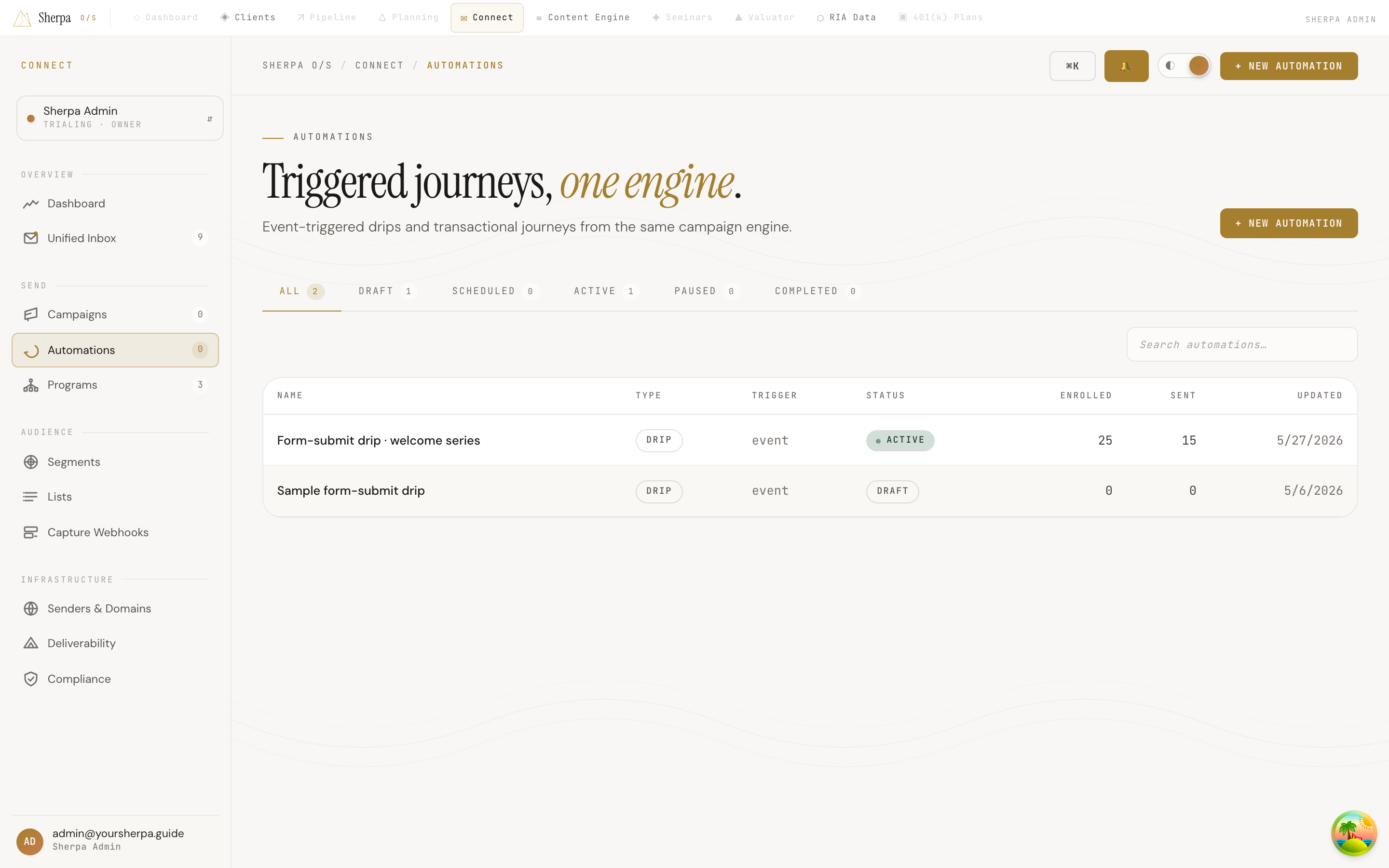
The Automations screen shows every email flow in your workspace that fires based on an event — rather than a one-time broadcast you schedule manually. It is the right place to build onboarding sequences, follow-up drips, and transactional journeys that should run without you touching them each time.
Getting there
Section titled “Getting there”In the app, navigate to Connect → Sends → Automations. The page header reads “Triggered journeys, one engine.”
What you can do
Section titled “What you can do”Browse and filter your automations
Section titled “Browse and filter your automations”The screen opens on an All tab. Five additional status tabs let you narrow the list instantly:
- Draft — flows you are still building
- Scheduled — flows set to activate at a future date
- Active — flows currently enrolling and sending (shown with a live indicator)
- Paused — flows temporarily stopped
- Completed — flows that have finished running
Each tab shows a count of automations in that state. Use the Search automations field in the top-right of the toolbar to find a flow by name.
Read the list columns
Section titled “Read the list columns”Every row in the table shows:
| Column | What it tells you |
|---|---|
| Name | The automation’s name; a program badge appears beside it if the flow belongs to a Program |
| Type | The campaign type — Drip or Transactional |
| Trigger | The event type that enrolls contacts |
| Status | Current state (Draft, Scheduled, Active, Paused, or Completed) |
| Enrolled | Total number of contacts ever added to the flow |
| Sent | Total emails sent across all steps |
| Updated | Date the automation was last modified |
Open or create an automation
Section titled “Open or create an automation”Click any row to open that automation’s detail view. To start a new flow, click + New automation in the top-right corner.
If the list is long and you reach the bottom, a Load more button appears — click it to fetch the next page of results.
Empty state
Section titled “Empty state”If no automations have been created yet, the list displays “No automations yet.” If a search term returns no matches, the list shows a message with the term you searched for.