Unified Inbox
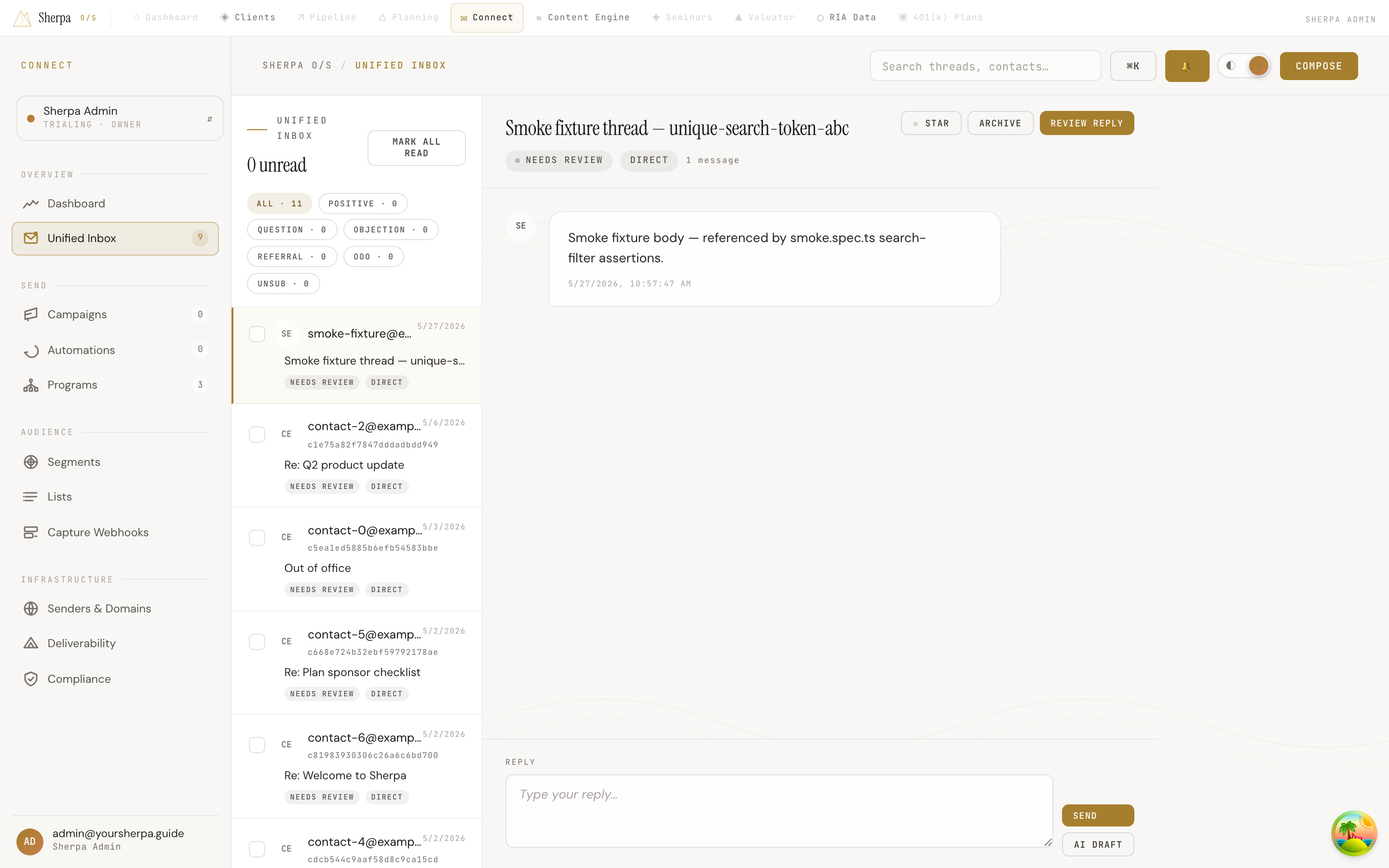
The Unified Inbox collects every inbound reply — from campaigns, automations, cold sequences, and direct messages — into a single threaded view so you can respond without switching between mailboxes.
Getting there
Section titled “Getting there”In the top navigation, go to Connect, then select Overview, and click Unified Inbox.
What you can do
Section titled “What you can do”Read and triage threads
Section titled “Read and triage threads”The left column shows all your threads with each sender’s email address, subject line, and the date of the last message. Unread threads appear with a highlighted avatar. A count of unread threads is shown at the top of the list.
Each thread carries two classification chips:
- Classification — Sherpa automatically categorizes the reply as Positive, Objection, Out of office, Referral, Unsubscribe, Question, or Needs review.
- Source — indicates whether the reply came from a Cold sequence, Campaign, Flow, or Direct message.
Use the filter chips at the top of the thread list to narrow to a specific classification: All, Positive, Question, Objection, Referral, OOO, or Unsub.
The global search bar performs a live, case-insensitive search across subject lines and sender email addresses.
Reply to a thread
Section titled “Reply to a thread”- Click a thread in the left column to open the conversation.
- The center column shows all messages in the exchange, with your outbound messages on the right and inbound on the left.
- Type your reply in the Reply box at the bottom of the center column.
- Click Send to deliver your message. You can also click AI draft to generate a suggested reply.
The conversation header also shows a context-sensitive action button (for example, Book meeting on a Positive reply) and an Archive button to remove the thread from your active inbox.
Use the contact card
Section titled “Use the contact card”On wider screens a contact card appears on the right. It shows the sender’s name, email address, engagement totals (emails received, opens, clicks, replies), sequence status, and a suggested next action. Click View CRM to jump directly to that contact’s record in the Clients module.
If the contact’s email has bounced, the card displays a Bad email — bounced badge with the bounce date.
Bulk archive
Section titled “Bulk archive”Check the box on any thread row to select it. When one or more threads are selected, a floating toolbar appears at the bottom of the screen with an Archive button and a Clear button to deselect all.