Browsing firms
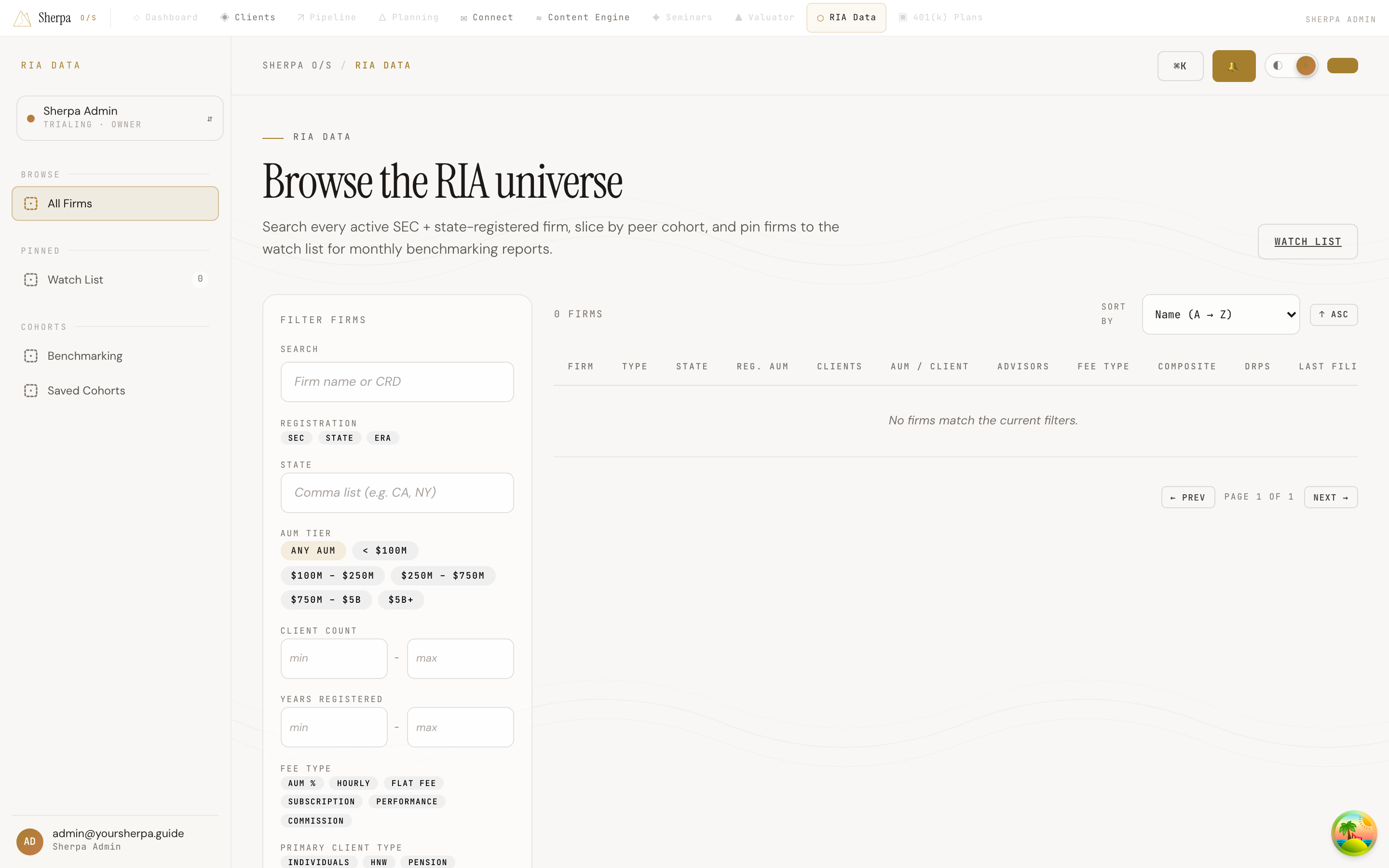
The Browse screen gives you access to the full RIA universe — every active SEC-registered, state-registered, and ERA firm in one paginated table, with a filter rail to zero in on a specific segment.
Getting there
Section titled “Getting there”In the left navigation, go to RIA Data → Browse → All Firms.
If RIA Data is not enabled, the screen shows a notice; an owner can turn it on under Settings → Modules.
What you can do
Section titled “What you can do”Search and filter firms
Section titled “Search and filter firms”The filter rail on the left (a Filters drawer on smaller screens) narrows results in real time. Combine any filters:
- Search — type a firm name or CRD number.
- Registration — toggle SEC, State, or ERA.
- State — enter two-letter codes separated by commas (e.g.,
CA, NY). - AUM tier — pick a preset range from under $100M up to $5B+.
- Client count — set a min and/or max total-client count.
- Years registered — filter by registration tenure.
- Fee type — AUM %, Hourly, Flat fee, Subscription, Performance, or Commission.
- Primary client type — Individuals, HNW, Pension, Charitable, Corporate, or Other.
- Only firms with disclosure events — firms with at least one DRP record.
- BD-affiliated — Yes, No, or Either.
- Only show firms I’m watching — limits results to your watch list.
Read the results table
Section titled “Read the results table”Each row shows the firm name (linked to its detail page), CRD number, Type, State, Reg. AUM, Clients, AUM / client, Advisors, Fee type, Composite score, DRPs, and Last filing date. A dash appears for any field without data.
Use the Sort by dropdown and the Asc / Desc toggle to reorder results. Page through with ← Prev and Next → at the bottom.
Watch a firm
Section titled “Watch a firm”Click Watch on any row to pin a firm to your watch list; the button changes to Watching. Click again to remove it. To see all pinned firms, select Watch list in the top-right corner or enable Only show firms I’m watching in the filter rail.
Save a filter set as a cohort
Section titled “Save a filter set as a cohort”Click Save current filters as cohort… at the bottom of the filter rail. Give it a label and optional URL-safe slug, then click Save cohort.
Saved cohorts appear in the filter rail; click a chip to reload its filters. Each cohort offers:
- Members CSV — the list of firms in the cohort with their scores.
- Distribution CSV — the cohort’s percentile score distribution.