Content Library
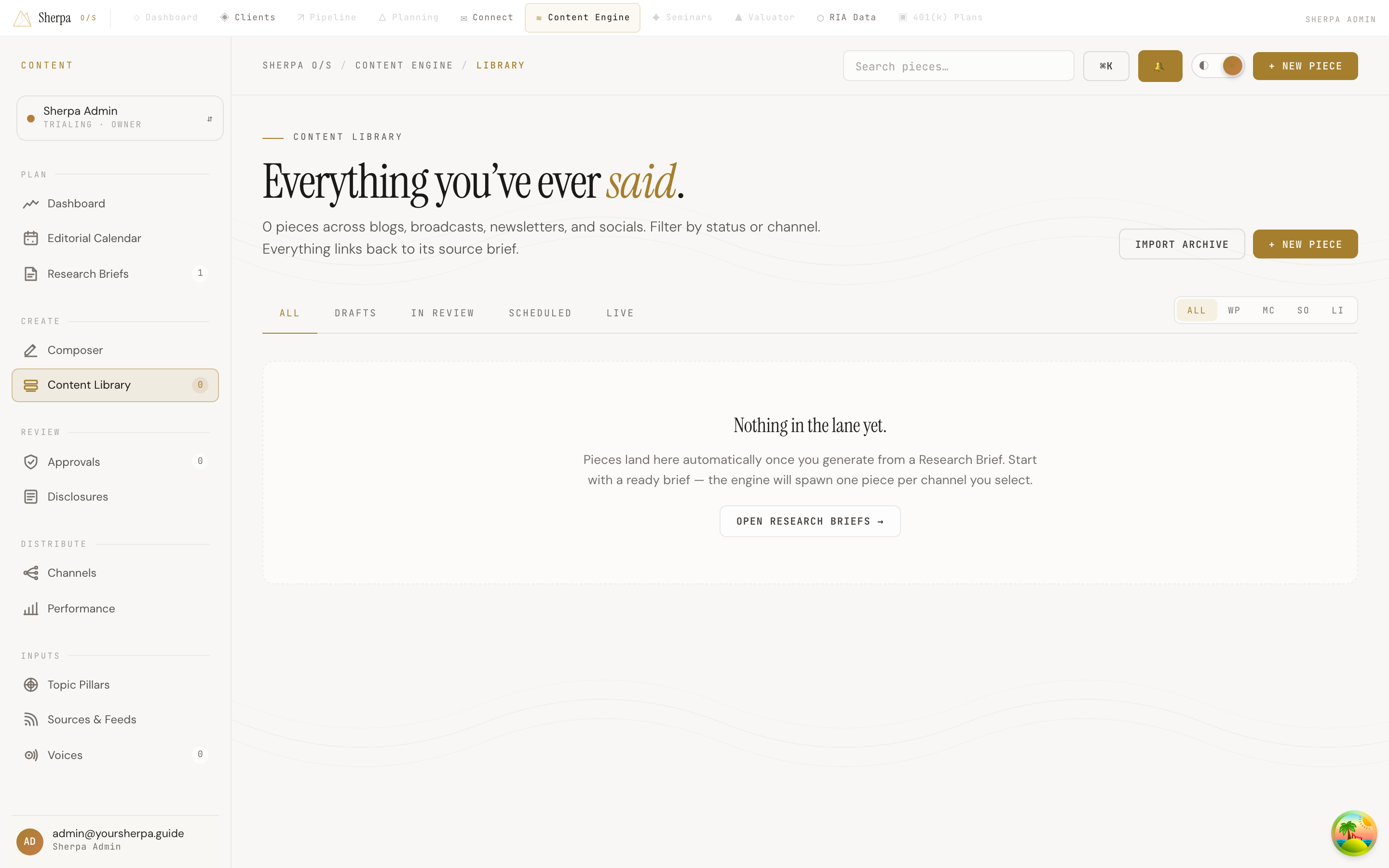
The Content Library is your single view of every piece of content Sherpa has generated for you — across every channel and every stage of the publishing workflow. Whether you need to review a draft, check what is scheduled, or jump back into a published piece, this is where you start.
Getting there
Section titled “Getting there”In the left-hand navigation, go to Content Engine, then Create, then Content Library.
What you can do
Section titled “What you can do”Browse and filter your pieces
Section titled “Browse and filter your pieces”The library displays up to 500 of your most recent pieces in a four-column card grid. Each card shows the piece title, content kind (for example, blog post or newsletter), channel, word count, and the Research Brief it came from — if one exists.
Use the status tabs across the top to narrow the list:
- All — every piece regardless of where it is in the workflow
- Drafts — pieces still being written or not yet submitted
- In review — pieces awaiting compliance or editorial approval
- Scheduled — pieces queued for future publication
- Live — pieces already published (these show a live pulse indicator)
Use the channel toggles on the right side of the tab bar to further filter by destination:
- All — every channel
- Wp — WordPress
- Mc — Mailchimp
- So — Connect (Sherpa’s email module)
- Li — LinkedIn
Search for a specific piece
Section titled “Search for a specific piece”The global search bar at the top of the app filters the library in real time as you type. The search matches against piece titles, so use a distinctive word from the headline to find what you need quickly.
Open and edit a piece
Section titled “Open and edit a piece”Click any card to open it in the Composer, where you can read, edit, or resubmit the piece.
Create a new piece
Section titled “Create a new piece”Select + New piece in the top-right corner to open the Composer with a blank slate.
Import an archive
Section titled “Import an archive”The Import archive button lets you bring in content created outside of Sherpa. Use this to seed the library when you are getting started.
Starting from scratch
Section titled “Starting from scratch”If the library is empty for a given filter combination, Sherpa will prompt you to open your Research Briefs. Pieces are generated automatically when you run a brief — one piece per channel you select at generation time. Start there if the library looks empty.