Editorial Calendar
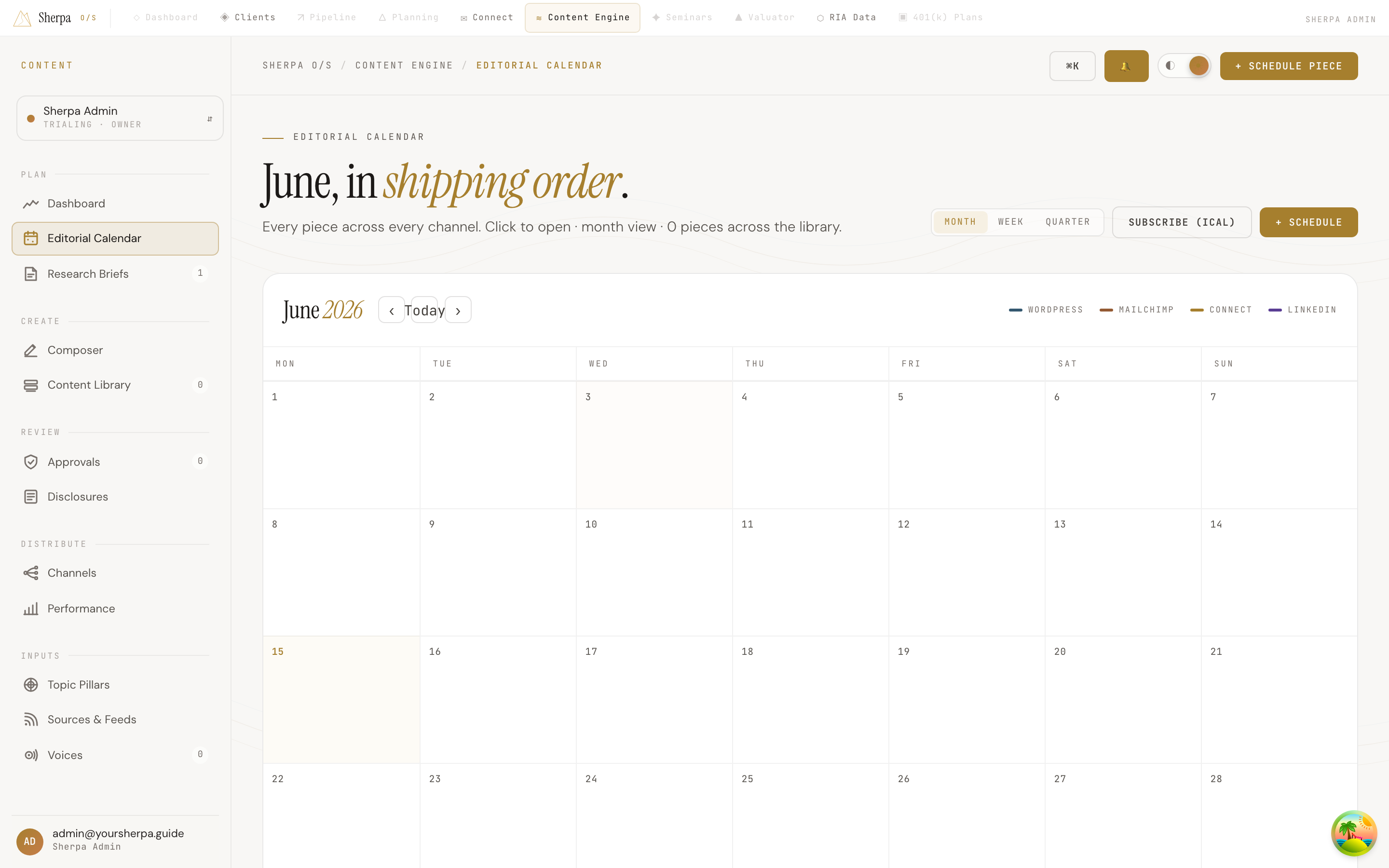
The Editorial Calendar gives you a month-at-a-glance view of every content piece across all your publishing channels. It is the fastest way to spot gaps, avoid overlaps, and keep your output on a predictable cadence.
Getting there
Section titled “Getting there”In the left navigation, go to Content Engine, then select Plan, and click Editorial Calendar.
What you can do
Section titled “What you can do”Browse and navigate
Section titled “Browse and navigate”The calendar opens on the current month. Each cell shows the day number and a count badge when more than one piece is scheduled that day. Use the ‹ and › arrow buttons to move between months, or click Today to jump back to the current month.
Switch views
Section titled “Switch views”Three view options sit in the top-right toggle: Month, Week, and Quarter. Switch between them to zoom in on a single week or zoom out for a quarterly overview.
Read the channel legend
Section titled “Read the channel legend”Each content piece is color-coded by its publishing channel:
- Blue — WordPress
- Copper — MailChimp
- Gold — Connect (Sherpa email)
- Purple — LinkedIn
The legend appears in the calendar header so you can read the color key at a glance.
Open a piece
Section titled “Open a piece”Click any colored event chip to open that content piece directly in the Composer, where you can review or edit the draft.
Schedule a new piece
Section titled “Schedule a new piece”Click the + Schedule button in the top-right to add a new item to the calendar.
Subscribe via iCal
Section titled “Subscribe via iCal”Click Subscribe (iCal) to add your editorial calendar to an external calendar application (such as Apple Calendar or Google Calendar) so your publishing schedule stays visible alongside the rest of your commitments.