Programs
Programs let you bundle related campaigns and automations into one container so you can manage shared routing rules and view funnel metrics across all of them at once. Use a program when several sequences are really chapters of the same story.
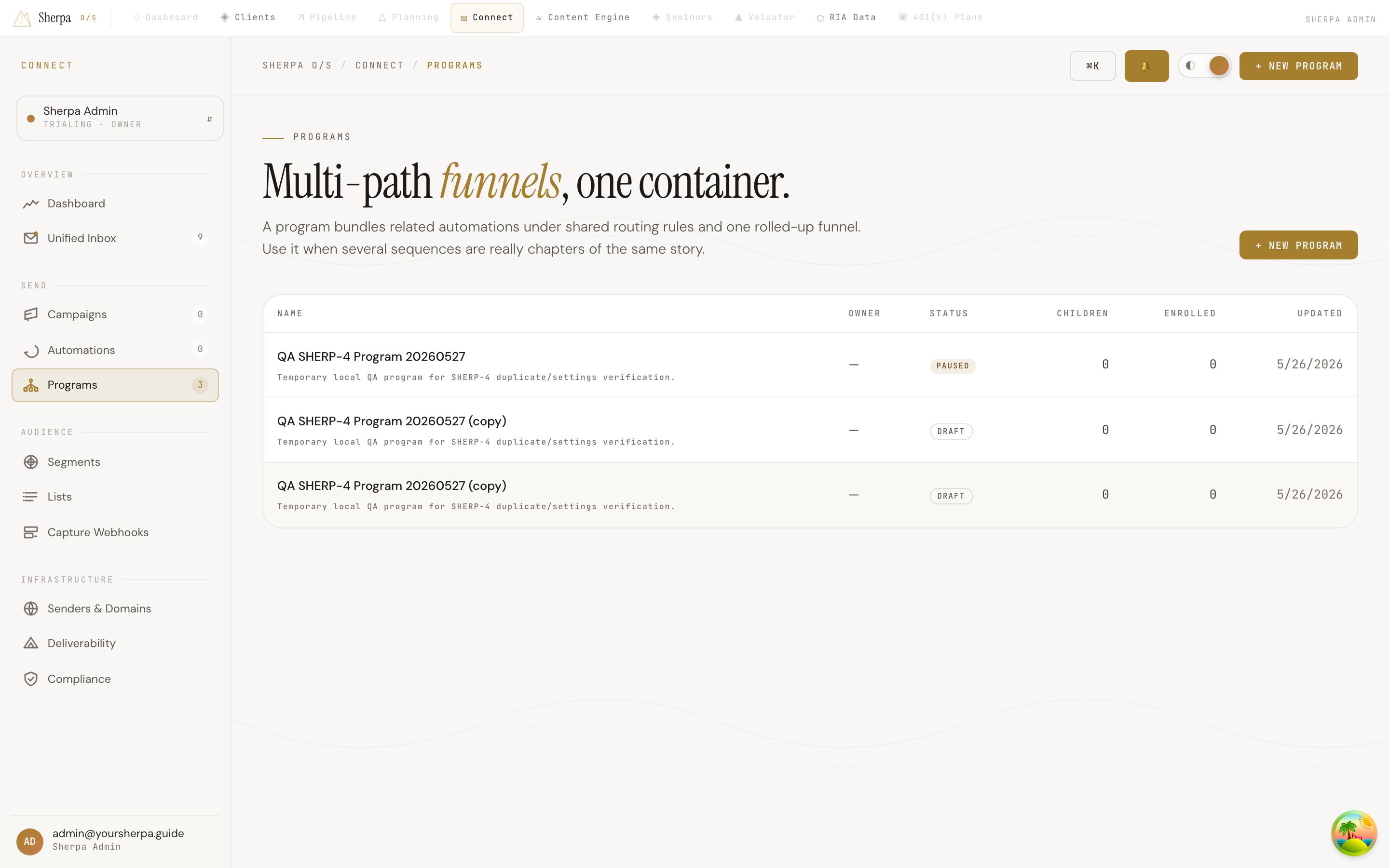
Getting there
Section titled “Getting there”In the app, navigate to Connect → Sends → Programs.
What you can do
Section titled “What you can do”Create a program
Section titled “Create a program”- Click + New program in the top-right corner of the page (or the same button in the empty state if you have no programs yet).
- Enter a Name — for example, “Wealthy Pilot Funnel” — up to 120 characters.
- Optionally add a Description to explain the program’s purpose and audience (up to 2,000 characters).
- Click Create program. Sherpa opens the program detail page immediately so you can start adding campaigns and flows.
Read the programs table
Section titled “Read the programs table”Each row in the table shows:
- Name — the program name and, if provided, a short excerpt of its description.
- Owner — the email address of the team member who owns the program.
- Status — one of four states: Active (green, pulsing), Draft, Paused, or Archived.
- Children — the number of campaigns or flows nested inside the program.
- Enrolled — the total number of contacts enrolled across all child sequences.
- Updated — the date the program was last modified.
Click any row to open that program’s detail view.
Understand statuses
Section titled “Understand statuses”| Status | What it means |
|---|---|
| Draft | The program is being built and nothing is sending yet. |
| Active | At least one child sequence is live and sending. |
| Paused | Sending is temporarily halted across the program. |
| Archived | The program is closed; retained for reporting only. |