Channels
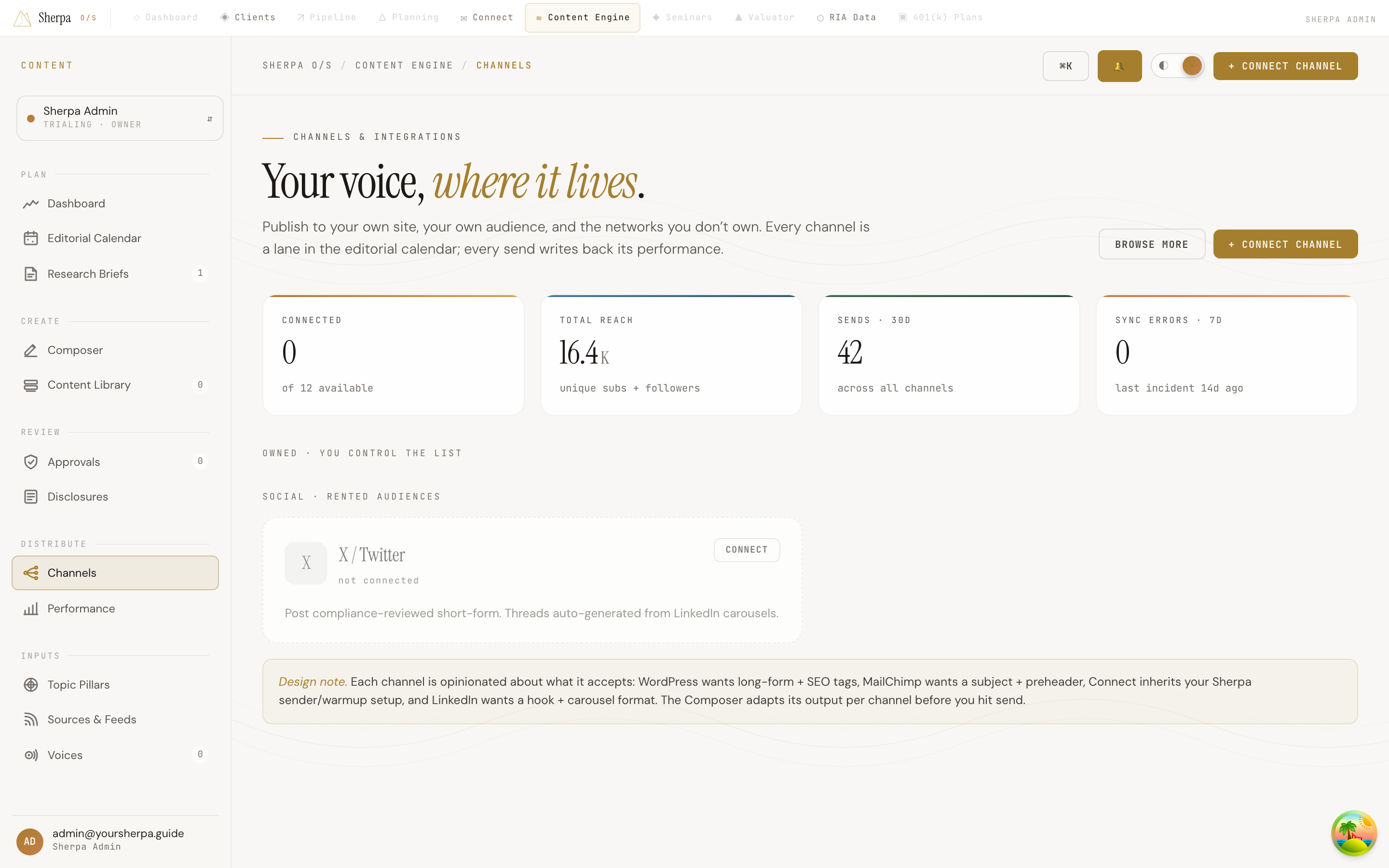
The Channels screen is your publishing hub. It shows every distribution outlet you have connected to Sherpa, lets you add new ones, and surfaces a live health summary so you always know whether your integrations are syncing correctly.
Getting there
Section titled “Getting there”In the left navigation, go to Content Engine, then select Distribute, then Channels.
What you can do
Section titled “What you can do”Read your distribution summary
Section titled “Read your distribution summary”At the top of the page, four stat tiles give you an instant snapshot:
- Connected — how many channels you have active out of 12 available integrations.
- Total reach — combined unique subscribers and followers across all connected channels.
- Sends · 30d — total content sends in the last 30 days.
- Sync errors · 7d — any sync failures over the past week, with the date of the last incident shown below.
Review channel health
Section titled “Review channel health”Channels are grouped into two sections:
- Owned — you control the list: WordPress, Mailchimp, and Sherpa Connect (your built-in email sender). These are channels where you own the subscriber relationship directly.
- Social — rented audiences: LinkedIn, with X / Twitter shown as an available but not-yet-connected option.
Each channel card displays:
- The channel name and host URL.
- A pulsing status chip: Connected (green), Degraded (amber), or Disconnected (red).
- A Last sync timestamp so you can confirm data is flowing.
- A Configure → link to open that channel’s settings.
If a card shows Degraded or Disconnected, open its settings via Configure → to re-authenticate or check your credentials.
Connect a new channel
Section titled “Connect a new channel”Click + Connect channel in the top-right corner to add an integration. Click Browse more to see the full catalog of available channels.