Calendar
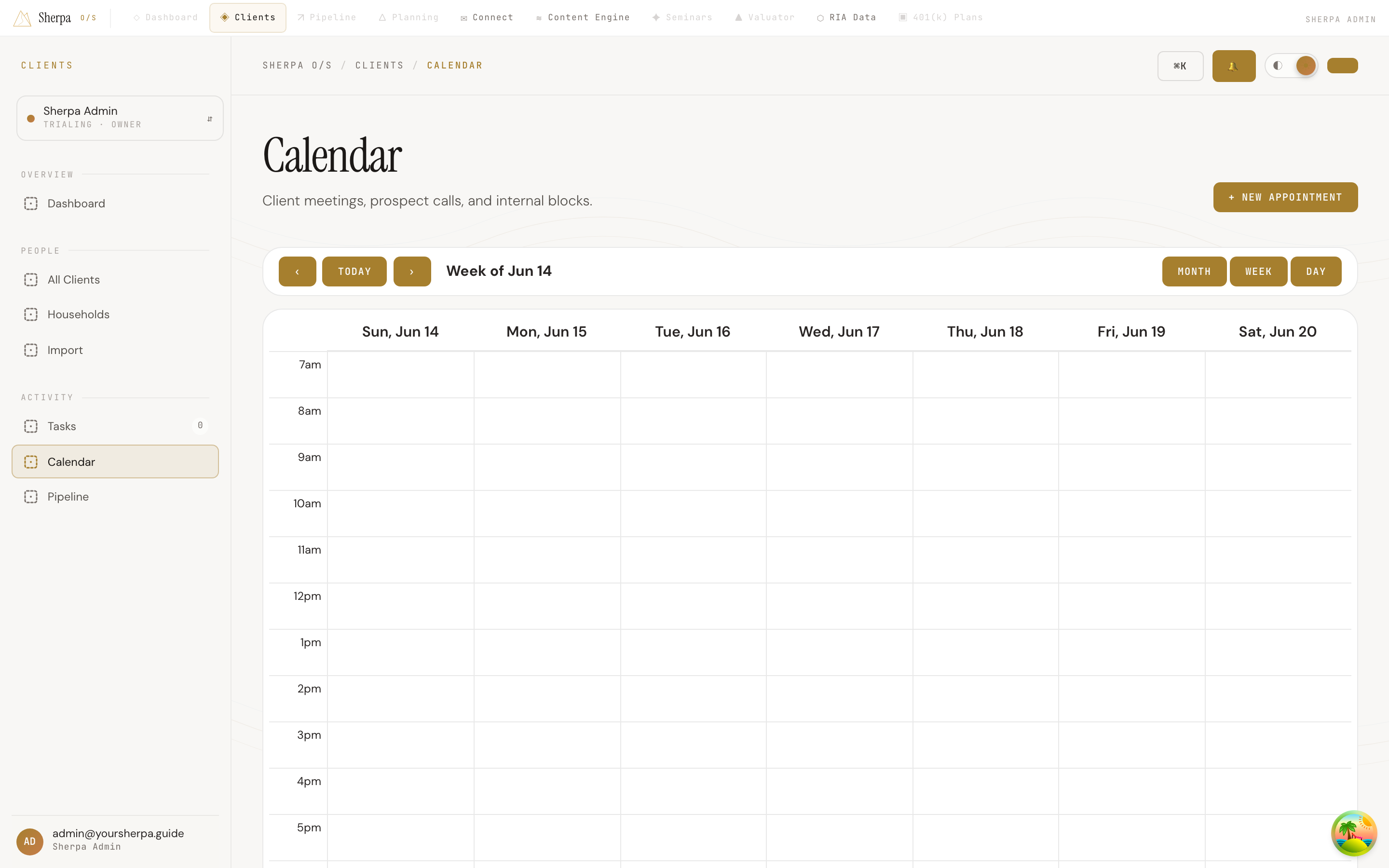
The Calendar gives you a single view of every appointment in your book — client reviews, prospect calls, and internal blocks — so nothing slips through the gaps.
Getting there
Section titled “Getting there”In the left-hand navigation, go to Clients, then choose Activity, and select Calendar.
What you can do
Section titled “What you can do”Switch views
Section titled “Switch views”Three view options are available at the top right of the calendar panel: Month, Week, and Day. Week is the default. Use the ‹ and › buttons to move backward or forward, and click Today to jump back to the current date.
Create an appointment
Section titled “Create an appointment”- Click + New appointment (top right of the page) to open the creation dialog.
- Fill in the required Title, Starts, and Ends fields.
- Choose a Type — Review, Prospect, Internal, or Other. The type controls the color of the appointment chip on the calendar.
- Optionally add a Location, a Virtual link, one or more Invitees (search your contacts by name), a Household, and any Notes.
- Click Create appointment. The new appointment appears immediately on the calendar.
You can also click any empty time slot in the week or day grid — or any date cell in the month grid — to pre-fill the start time and open the same dialog.
View or edit an appointment
Section titled “View or edit an appointment”Click any appointment chip to open a side panel on the right. The panel shows the title, date and time range, type, status, location, virtual link, invitees, and notes.
- To update the status (for example, to mark an appointment Completed, Cancelled, or No-show), use the status dropdown in the side panel.
- To edit any other field, click Edit in the side panel, make your changes, and click Save.
- To delete the appointment, click Delete and confirm.
Drag to reschedule
Section titled “Drag to reschedule”In the Week or Day view you can drag an appointment chip to a new time slot. Appointments snap to the nearest 30-minute mark, and the duration is preserved.