Pipeline
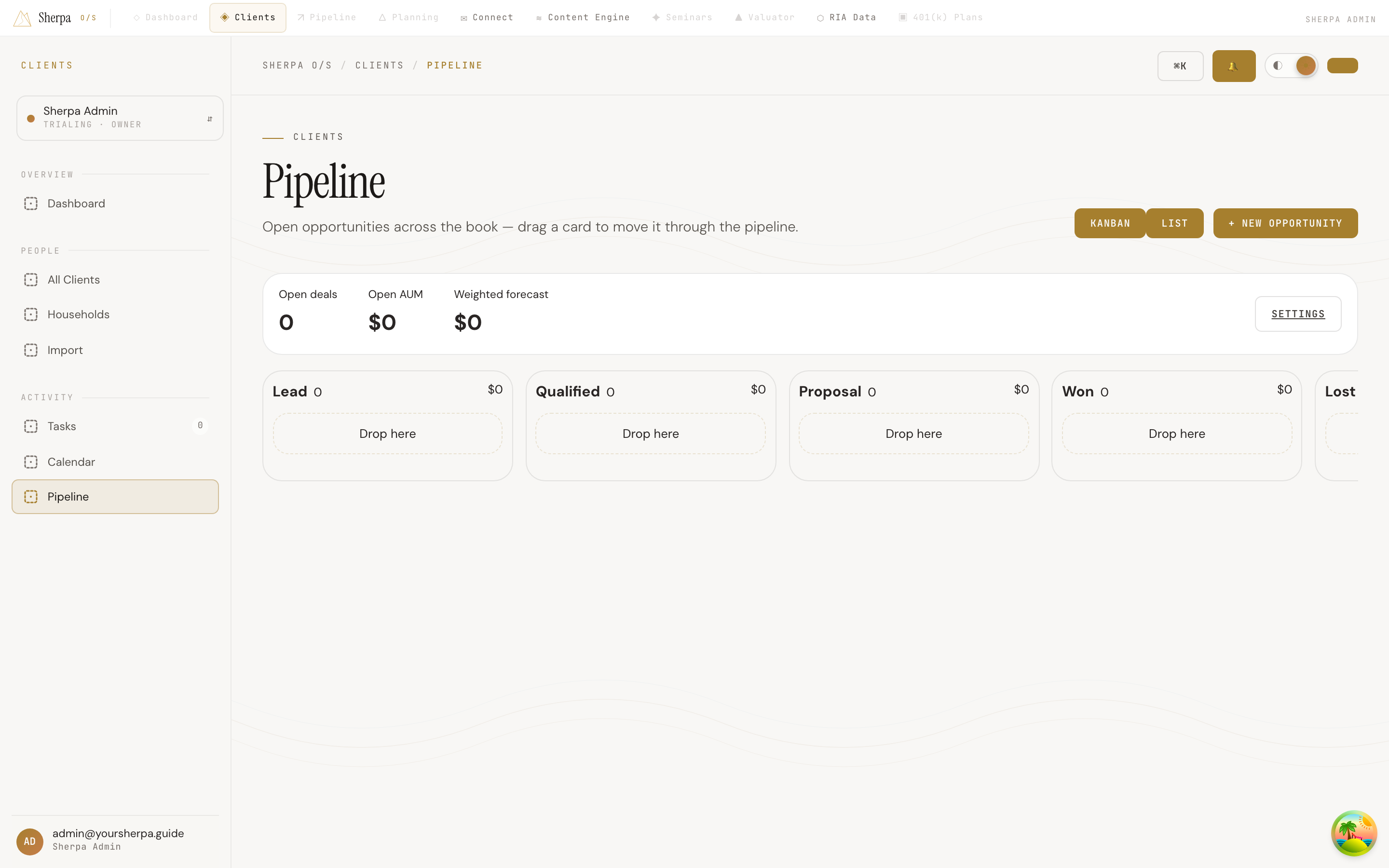
The Pipeline screen gives you a live view of every open opportunity across your book of business. Use it to track where prospects stand, see probability-weighted revenue at a glance, and move deals forward without leaving the page.
Getting there
Section titled “Getting there”In the left navigation, go to Clients, then select Activity and click Pipeline.
What you can do
Section titled “What you can do”View the board
Section titled “View the board”The page opens in Kanban view by default. Each column represents a pipeline stage, and the column header shows the number of cards in that stage alongside a probability-weighted forecast total. A summary bar at the top displays three workspace-wide numbers: Open deals, Open AUM, and Weighted forecast.
Switch to List view using the toggle in the top right to see all open opportunities in a table with columns for Name, Client, Stage, AUM, Weighted revenue, Probability, Close date, and Days in stage.
Add an opportunity
Section titled “Add an opportunity”- Click + New opportunity in the top right.
- Fill in the Name and search for a Primary client — both are required.
- Optionally enter Estimated AUM, Stage, Expected close date, Source (Referral, Inbound, Outbound, Event, or Other), and any Notes.
- As you type an AUM amount, the form previews the expected revenue based on your workspace fee rate.
- Click Create.
Move an opportunity between stages
Section titled “Move an opportunity between stages”Drag any card from one column and drop it onto a different column. If you drop a card onto a Won or Lost stage, a prompt appears asking for a brief close reason — enter one and click Confirm to complete the move. The reason is saved on the opportunity and appears in its stage history.
Review and edit an opportunity
Section titled “Review and edit an opportunity”Click any card (in Kanban or List view) to open the detail panel on the right. The panel shows the client link, household, owner, AUM, expected revenue, weighted forecast, close date, source, days in stage, and any notes. If the opportunity has been sitting in a stage longer than your workspace’s stale threshold, a Stale badge appears on the card and in the panel.
From the panel you can also:
- Click Edit to update the name, AUM, expected revenue, probability, close date, source, or notes.
- View the full Stage history log showing every stage transition with timestamps.
- See Linked tasks and Recent activity pulled from the primary client’s record, and log a new activity (note, call, meeting, email, or other) directly from the panel.
- Click Delete to permanently remove the opportunity.
Pipeline settings
Section titled “Pipeline settings”Click the Settings link in the summary bar to adjust workspace-level pipeline configuration, including your stale threshold and default fee rate.