Households
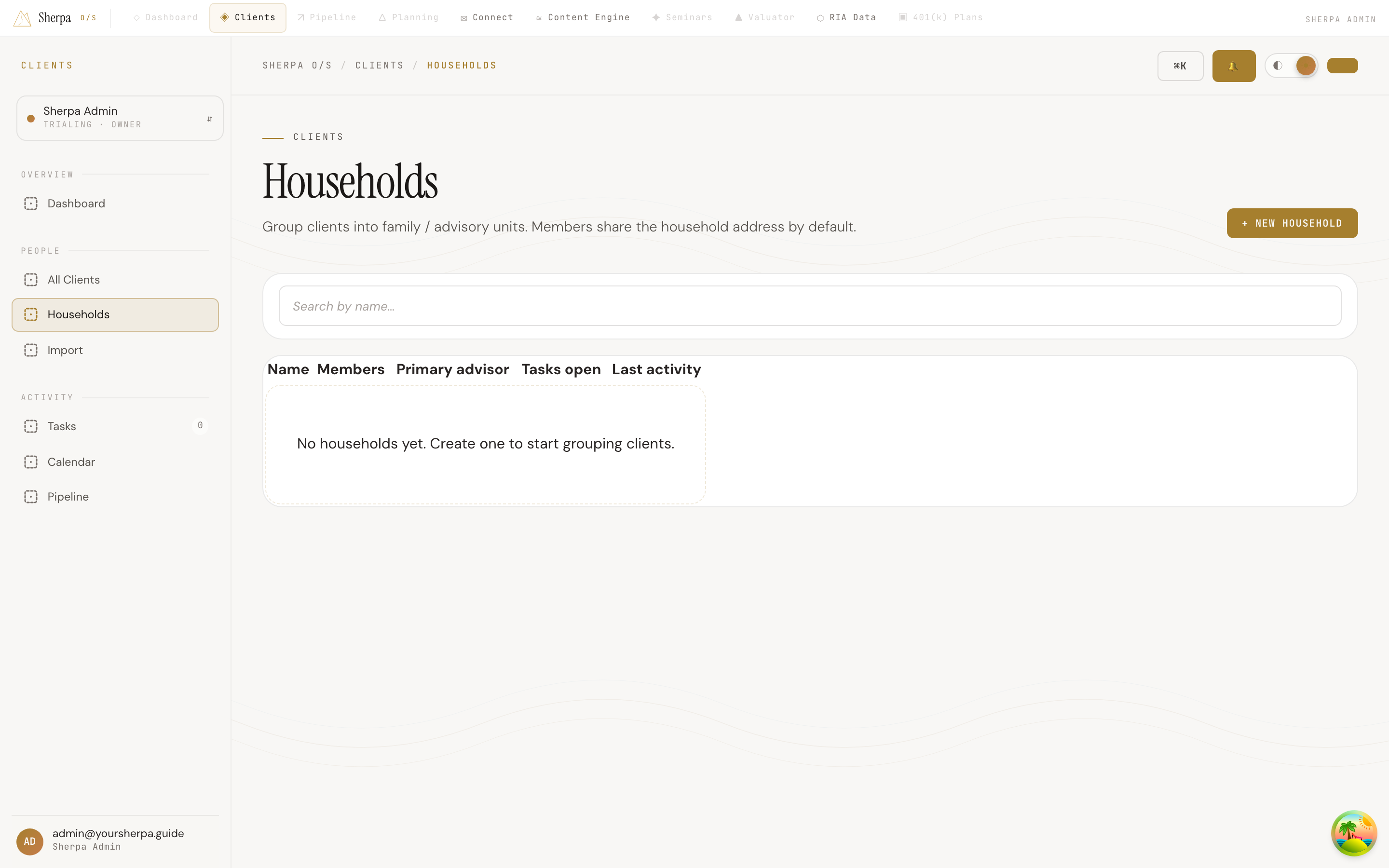
The Households screen lets you organize individual clients into family or advisory units so you can see the full picture of a relationship in one place. Members of a household share a common address by default, making it easier to manage multi-person accounts without duplicating information.
Getting there
Section titled “Getting there”In the left navigation, go to Clients, then select People, and click Households.
What you can do
Section titled “What you can do”Browse and search your households
Section titled “Browse and search your households”The main view displays all households in a table with the following columns:
- Name — the household’s display name, which links to the detail page.
- Members — the number of individual clients grouped into this household.
- Primary advisor — the advisor assigned to the household.
- Tasks open — a count of outstanding tasks associated with this household.
- Last activity — the date of the most recent recorded activity.
Use the Search by name field at the top of the list to filter households as you type. If you have a large book of business, click Load more at the bottom of the table to page through additional results.
Create a new household
Section titled “Create a new household”- Click + New household in the upper-right corner of the page.
- In the form that appears, enter a name in the Household name field — for example, The Smith Family.
- Click Create. You are taken directly to the new household’s detail page where you can add members and additional information.
To cancel without saving, click Cancel or click the Close button that replaces + New household while the form is open.